How to Play 3DS Games on iPhone with Folium Emulator (No Jailbreak) – Full Setup Guide 2026
.jpg)
Folium is the key. Here’s the complete visual walkthrough.
For the first time, a true Nintendo 3DS emulator has arrived on the App Store without any jailbreak tricks. Folium not only plays 3DS titles but also supports Game Boy Advance and Nintendo DS games — all from one elegant interface. The setup is straightforward but requires a few specific files and tweaks to unlock its full potential.
Below, we guide you through every screen: from downloading the app to importing your legally owned ROMs and fine‑tuning the settings for the smoothest possible gameplay. No fluff, just the real steps that make everything click.
Folium is a premium emulation app developed specifically for iOS. Unlike older sideloading methods, it works entirely inside Apple’s own sandbox — meaning no computer needed after purchase, no revoked certificates, and no constant re‑signing. Once you download it, it's yours forever.
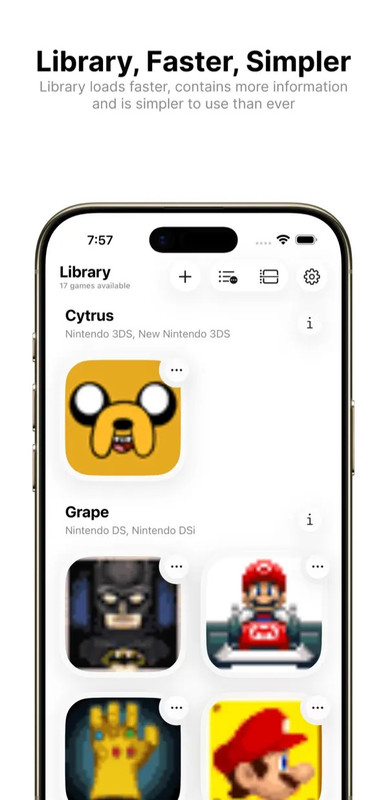
Here’s what you’ll see when you first open Folium, and how it looks after you load your games:
 The initial Folium interface – notice the “aes_keys” button, Cytrus core, and the clean layout. (Image: Use-folium-iphone-10.png)
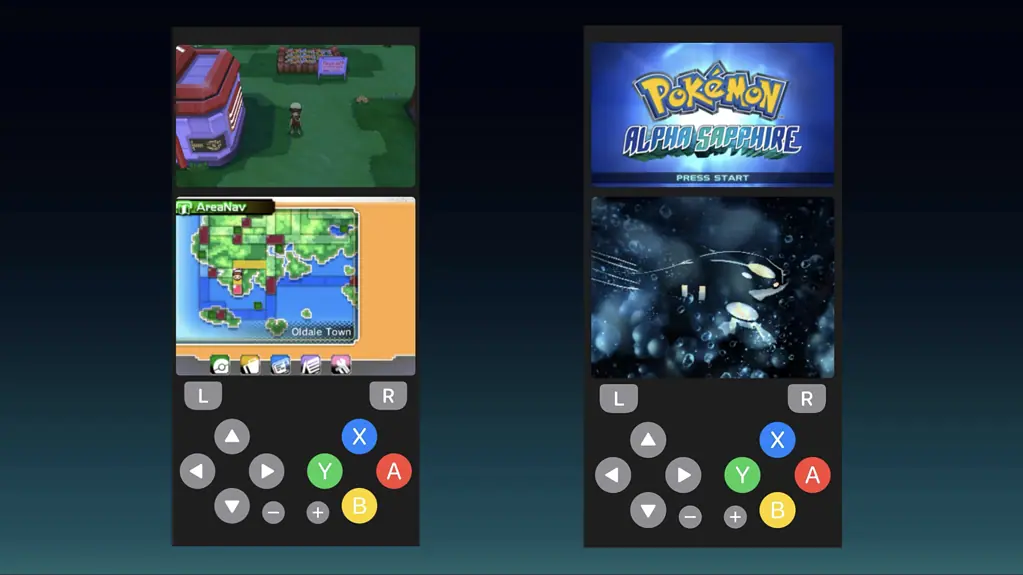 A game successfully imported – your library builds up here. (Image: Use-folium-iphone-14.png)
With just a few steps, your iPhone transforms into a portable 3DS. The app supports full‑screen touch controls, external controllers, and multiple save states. Now, let’s get you set up.
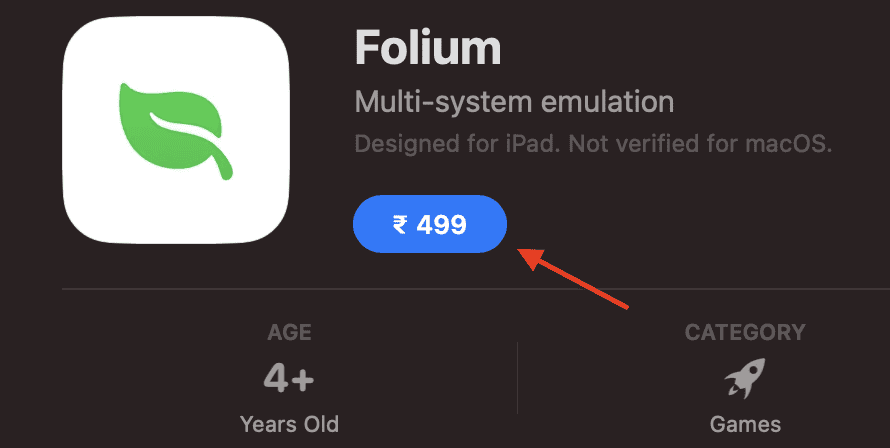 Step 1: Search “Folium” and install – exactly like any other app. (Image: Use-folium-iphone-1.webp)
Folium is available worldwide for a one‑time purchase (around $4.99). No subscription, no ads. Once bought, it stays in your purchase history.
- Open the App Store on your iPhone.
- Tap the Search tab and type “Folium”.
- Locate the app by “Folium Emulator” and tap the price button to purchase.
- The app installs immediately — open it once to see the initial setup screen.
If Folium isn’t showing in your country’s store, you can temporarily switch your App Store region to the United States, download it, then switch back. The app works globally.
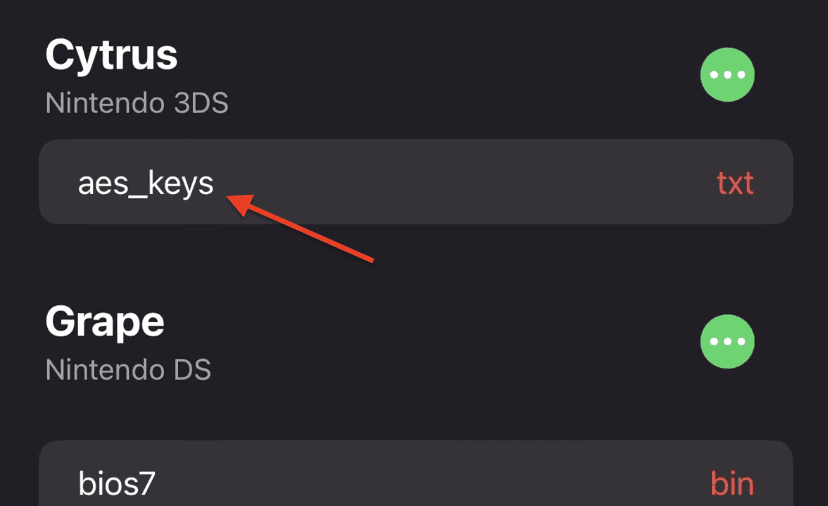 Use the import button to load your aes_keys.txt – without it, games won’t boot. (Image: Use-Folium-iphone-11.webp)
3DS games are encrypted. Folium needs a small text file called aes_keys.txt to decrypt them. You can obtain this legally by dumping it from your own 3DS console, or find it online (a quick search will help). Once you have the file:
- On Folium’s home screen, tap the “aes_keys” button.
- Select Import and navigate to where you saved the
.txtfile (usually the Downloads folder in Files). - Tap the file and then Open – the prompt will disappear if the file is valid.
The aes_keys button should now be replaced by the core selector (Cytrus). You’re ready for the next step.
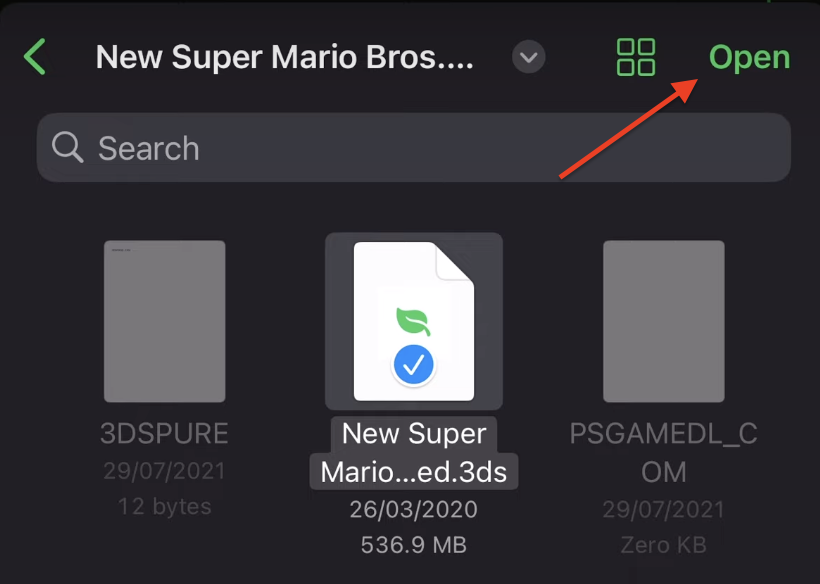
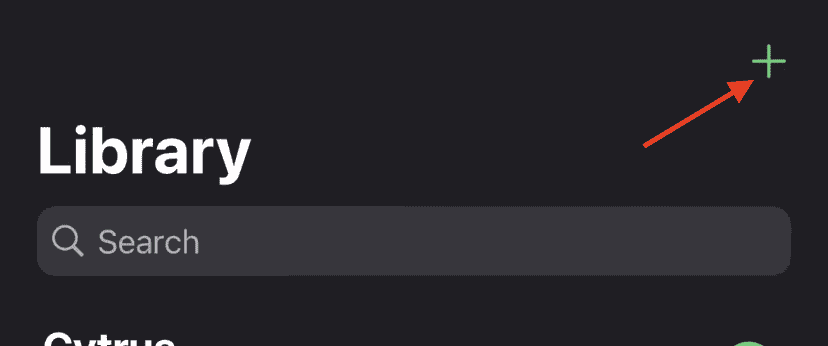 Tap the + icon and point to your .3ds or .cci file. (Image: Use-folium-iphone-12-1.png)
ROMs should be in .3ds or .cci format. Many downloads come compressed as .zip or .7z. iOS can’t handle .7z natively — simply rename the extension from .7z to .zip in the Files app and tap to extract.
- Place your extracted ROM file in an easy‑to‑find folder (e.g., “3DS Games” in Files).
- In Folium, tap the + icon at the top right.
- Navigate to your ROM and select it.
- The game instantly appears on the Folium home screen. Tap it to launch.
Make sure the ROM is fully extracted (not inside a zip) and that your aes_keys are properly loaded. Encrypted ROMs will produce a black screen.
Since Apple doesn’t allow JIT compilation for App Store apps, some 3D games may feel sluggish on older iPhones. A few internal tweaks can dramatically improve the frame rate.
- On Folium’s home screen, tap the three‑dot icon (⋮) next to Cytrus.
- Go to Renderer → Shaders.
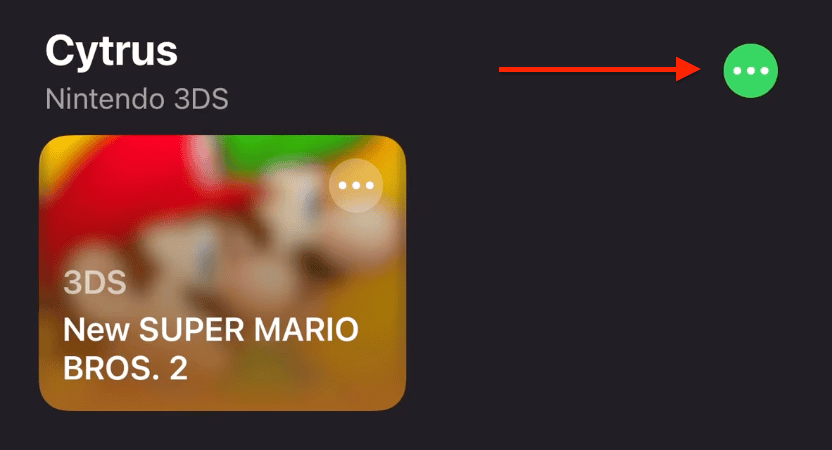 Enter the settings via the menu next to Cytrus. (Image: Use-folium-iphone-2.webp)
- Turn ON all three options: SPIRV Shader Generation, Async Shader Compilation, and Use Hardware Shaders.
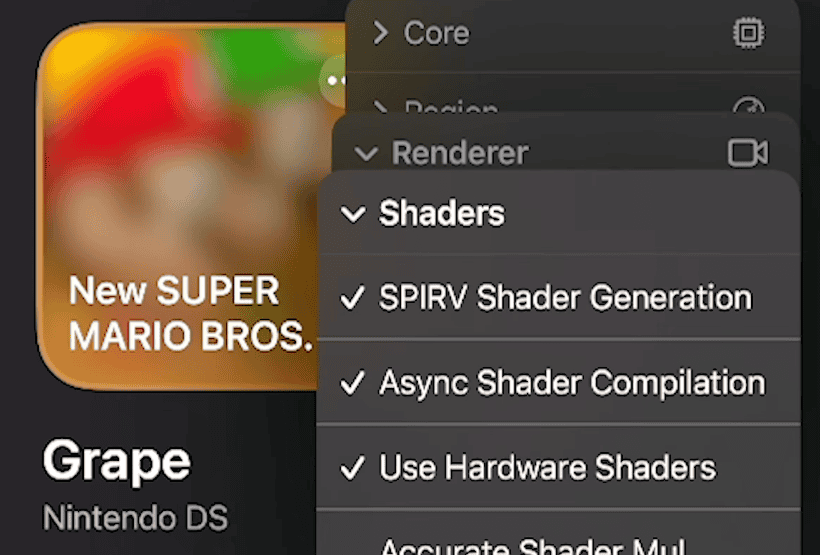 Enable these three – they drastically reduce stutter. (Image: Use-folium-iphone-3.png)
- Go back one level to Renderer and enable Async Presentation and Use New Vsync.
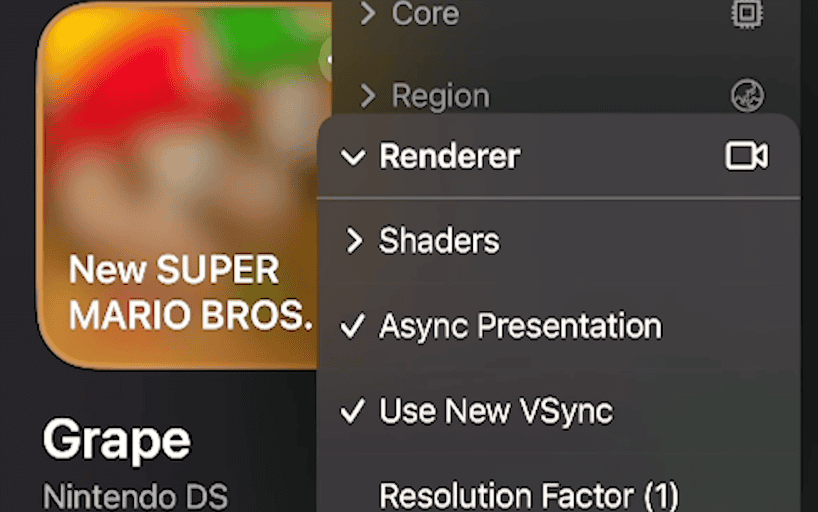 Async Presentation ON. (Image: Use-folium-iphone-6.png)
Use New Vsync ON. (Image: Use-folium-iphone-7.png)
Async Presentation ON. (Image: Use-folium-iphone-6.png)
Use New Vsync ON. (Image: Use-folium-iphone-7.png)
- Finally, scroll down and set the Resolution Factor to 1. This is the single most impactful setting for weak devices.
 Resolution Factor 1 – huge performance gains. (Image: Use-folium-iphone-9-1.png)
After these changes, even demanding games like Pokémon Ultra Sun become playable on iPhone 13 and above. Older devices will benefit most from the Resolution Factor tweak.
With the keys imported, ROMs loaded, and performance settings tuned, Folium delivers an authentic dual‑screen experience right on your iPhone. The app is constantly updated, adding compatibility and smoothing out rough edges.
When a game doesn’t boot, check these three things:
- aes_keys.txt is correctly imported and not an old version.
- The ROM file is fully decrypted and ends in .3ds or .cci, not .zip.
- Performance tweaks (Shader and Resolution) are applied.
Common Questions
aes_keys.txt and import it again. Also confirm the ROM is fully decrypted.


![GameHub v5.3.5 Free Download for Android [Official App 2026]](https://blogger.googleusercontent.com/img/b/R29vZ2xl/AVvXsEj4TbvK44yH-bqDGUwJz9bqx42qBk9nLssZaJDWcWvM8pfwkhPRP8Wq8G-NwY147mDtxvuRbmdOED6HgJ-ybszc-40GnSBT7qYa5LS2IwxuCIugvFNLLwdIElkKAdMylkaWfjqMK3qGLMM3B3eV5O94GxSwUjIOe-U4qTXu2Ig_1zPtvwu9D6rof5v9N7Uf/s960/gamehub_hero_image.webp)
