AetherSX2 Best Settings & PS2 ROMs Download 2026
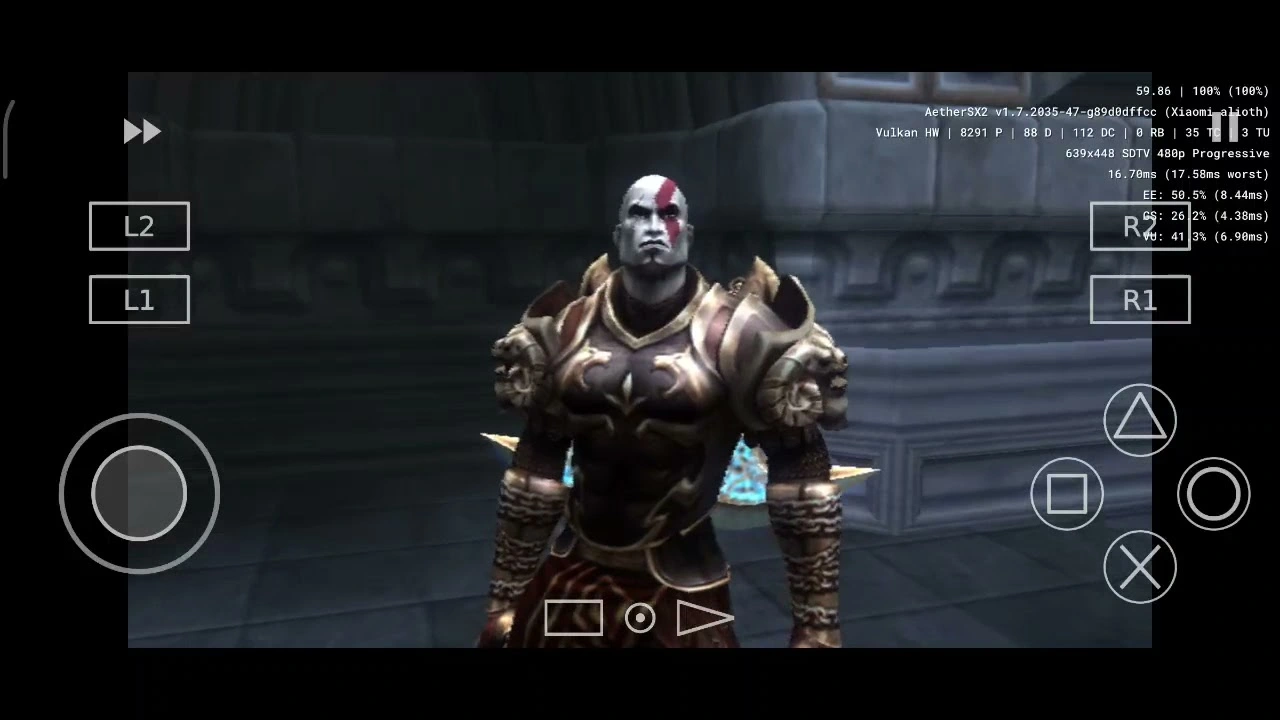
Everything you need: BIOS setup, per-device tuning, common fixes, and 1,000+ PS2 ROMs. Works on budget phones through flagship hardware.
Why AetherSX2 Still Dominates in 2026
AetherSX2 is built on the same PCSX2 core that powers PC-level PS2 emulation — ported to Android with Vulkan integration and per-game profile support. Even though official development paused, it runs 95% of the PS2 library without game-specific tweaks. No competing Android emulator comes close to that hit rate.
The real differentiator is Vulkan support. On Qualcomm Adreno GPUs — found in nearly every Android flagship — Vulkan dramatically reduces CPU overhead compared to OpenGL, meaning more frames without the battery drain. For older Mali GPUs, OpenGL remains the safer fallback, but Adreno users should always start with Vulkan.
If you want active development with the latest GPU fixes, NetherSX2 (covered at the end of this guide) is worth trying. For first-time setup, stability, and ease of use, AetherSX2 is still the correct starting point in 2026.
How to Install AetherSX2 + BIOS
Get the pre-tested version from our trusted source. Enable "Install from unknown sources" in your Android settings if prompted. Avoid random APK sites — they often bundle outdated or modified versions.
The PS2 BIOS is required — without it, no game will launch. You can legally dump it from your own PS2 console, or access our BIOS library for archival purposes. You need the scph files matching your region (NTSC-U, NTSC-J, or PAL).
Open AetherSX2 → Settings → BIOS → select the folder containing your BIOS files. A green checkmark confirms correct detection. Red means corrupt file or wrong region — try another BIOS version from the library.
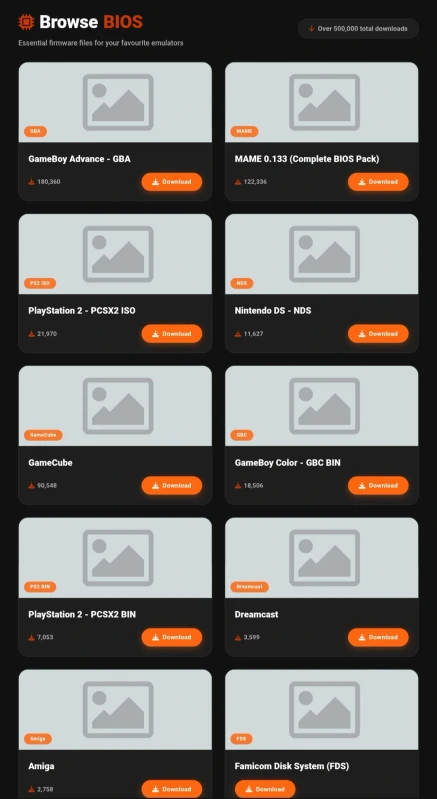
Select your BIOS folder here — the green checkmark confirms it loaded correctly.
Before applying any custom settings, go to System → Reset to Fast Defaults. This gives you a clean, performance-optimized baseline — then layer your settings on top of it, not from the factory defaults.
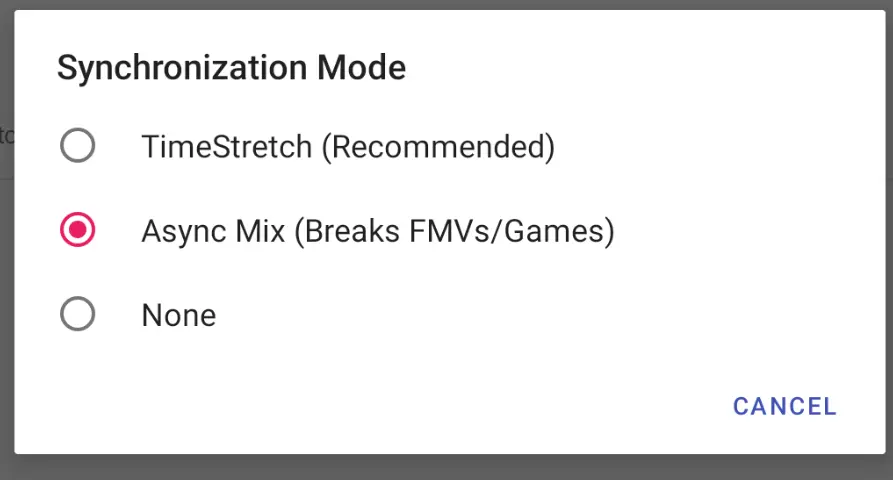
Always start from "Fast Defaults" — your custom settings go on top of this baseline, not the factory defaults.
Best AetherSX2 Settings (2026)
These universal settings apply to every device. Apply them all before moving to the per-device tuning in the next section. The single biggest performance jump comes from the Graphics Renderer — don't skip it.
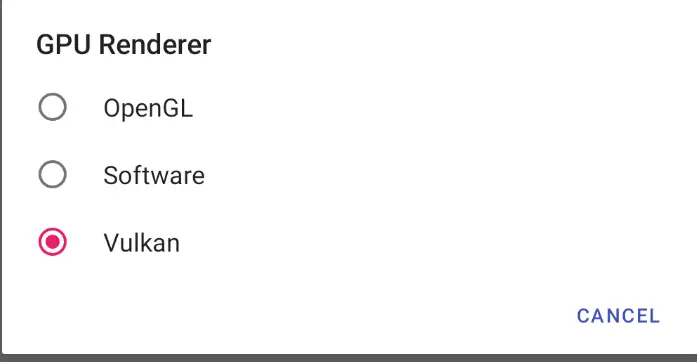
Set your renderer to Vulkan — this single toggle matters more than anything else in the settings.

Threaded Presentation on — always. It smoothens frame pacing on every device class.
Settings by Device Class
Apply these after the universal settings above. If you're unsure which tier your phone is, check the chipset name in your device settings or look it up on GSMArena — the chipset model is what matters.
Where to Download PS2 ROMs
With the emulator configured, you need the game files. AndroidGameHub hosts the largest verified PS2 library on the Android web — 1,000+ titles in CHD and ISO format. CHD files are losslessly compressed, so they load faster and take up less storage than raw ISOs without any quality loss.
Every file is integrity-checked before upload. No malware, no corrupted archives, no redirect walls. You pick the game, you download it.
.webp)
Over 1,000 PS2 titles in our library — CHD and ISO format, every file verified and malware-free.
🎮 Game Library
1,000+ PS2 Games. Ready to Play.
CHD & ISO format — compressed, verified, no sign-up required.
Fix Common AetherSX2 Problems
Most issues have a quick fix. Work through the relevant entry below before reinstalling or switching emulators — 90% of problems are solved at the settings level.
NetherSX2 — The Community Fork
NetherSX2 is a community-maintained fork of AetherSX2 with three practical improvements: ads removed, additional GPU optimizations for newer Adreno chips, and active bug fixes from open-source contributors. All settings in this guide apply equally — same interface, same options.
The difference is under the hood: NetherSX2 ships with newer PCSX2 core updates that fix long-standing issues in specific titles like Final Fantasy XII and Shadow of the Colossus. If you've hit a wall with AetherSX2 on a particular game, NetherSX2 is the right next step. Find it in our Emulators Hub alongside setup instructions.
📱 You're set
Your Android Is Now a Portable PS2
Thousands of classics. Full speed. In your pocket.


![GameHub v5.3.5 Free Download for Android [Official App 2026]](https://blogger.googleusercontent.com/img/b/R29vZ2xl/AVvXsEj4TbvK44yH-bqDGUwJz9bqx42qBk9nLssZaJDWcWvM8pfwkhPRP8Wq8G-NwY147mDtxvuRbmdOED6HgJ-ybszc-40GnSBT7qYa5LS2IwxuCIugvFNLLwdIElkKAdMylkaWfjqMK3qGLMM3B3eV5O94GxSwUjIOe-U4qTXu2Ig_1zPtvwu9D6rof5v9N7Uf/s960/gamehub_hero_image.webp)
