How to Play PS2 on iPhone Using LiveContainer – The Ultimate Guide (2026)
LiveContainer + Play! makes it real in 2026.
If you're an iOS user dreaming of playing classic PS2 titles on your iPhone or iPad, your wait is over. Thanks to LiveContainer and the Play! Emulator, you can now run PS2 games smoothly, natively, and without jailbreaking.
This guide walks you through every step — from downloading the emulator to placing the right ISO in the correct directory. By the end, you'll be running PS2 games on your iOS device like a pro.
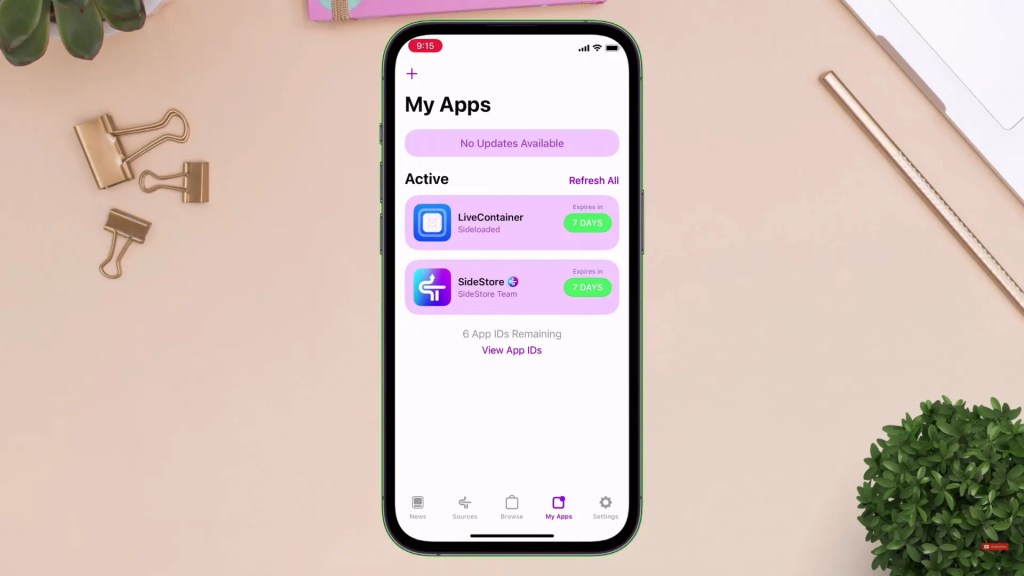 LiveContainer installed on iPhone — the key to bypassing Apple's 3-app sideload limit
Before getting started, make sure you have the following tools ready on your device:
- SideStore or AltStore installed on your device
- LiveContainer installed via SideStore
- Play! Emulator IPA file — the only working PS2 emulator for iOS
- PS2 ISO game file (.iso format)
- Basic file management skills inside the iOS Files app
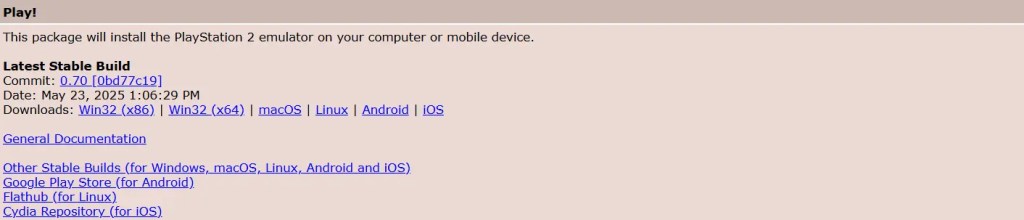 The official Play! Emulator download page — always use the latest IPA release
To play PS2 games, you must use the Play! Emulator. (Note: AetherSX2 does not exist for iOS — avoid any fake links claiming otherwise.)
- Go to the official Play! Emulator downloads page or GitHub releases.
- Download the latest Play! IPA file for iOS.
- Once downloaded, the file saves to your Files app → Downloads folder.
With the IPA file downloaded, now install it via LiveContainer — this bypasses Apple's 3-app sideload limit and keeps Play! running separately from your other sideloaded apps.
- Open LiveContainer on your iPhone.
- Tap the + (plus icon) in the top right corner → choose Install IPA File.
- Navigate to your downloaded
Play.ipafile and select it. - After installation, open the Play! app once to let it create its backend folders — this is critical for the next steps.
That first launch generates the required file structure inside LiveContainer's data directory. Without it, the game folder won't exist yet and your ISO won't be detected.
 PS2 games must be in ISO format — here's how to extract them directly on iPhone
Your PS2 games must be in ISO format. However, they often come compressed as .zip or .7z to save storage — and iOS can't extract .7z natively. Here's the workaround:
- In the Files app, locate your downloaded game (e.g., Naruto.7z).
- Long-press the file → tap Rename.
- Change the extension from
.7zto.zip. Confirm when prompted. - Tap the renamed ZIP file — iOS extracts it automatically and your ISO file appears.
Make sure your ISO isn't corrupted before going through the setup. A bad dump will crash the emulator even with JIT enabled — always verify the file size matches the expected dump.
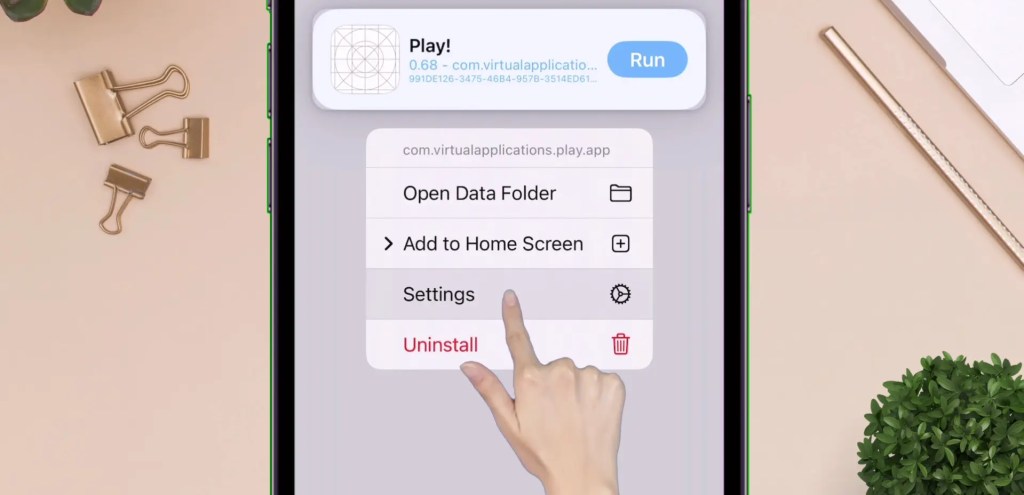 The correct directory path inside LiveContainer — one wrong folder and the game won't appear
This is the most precise step. Putting the ISO in the wrong folder means Play! will never detect it.
- In LiveContainer, long-press the Play! app icon → tap Settings.
- Note the unique alphanumeric app ID shown on screen (looks like:
A1B2C3D4...). - Open Files app → On My iPhone → LiveContainer → data → application.
- Find the folder that exactly matches your app's unique ID from step 2.
- Enter that folder → tap Documents → paste your ISO file here.
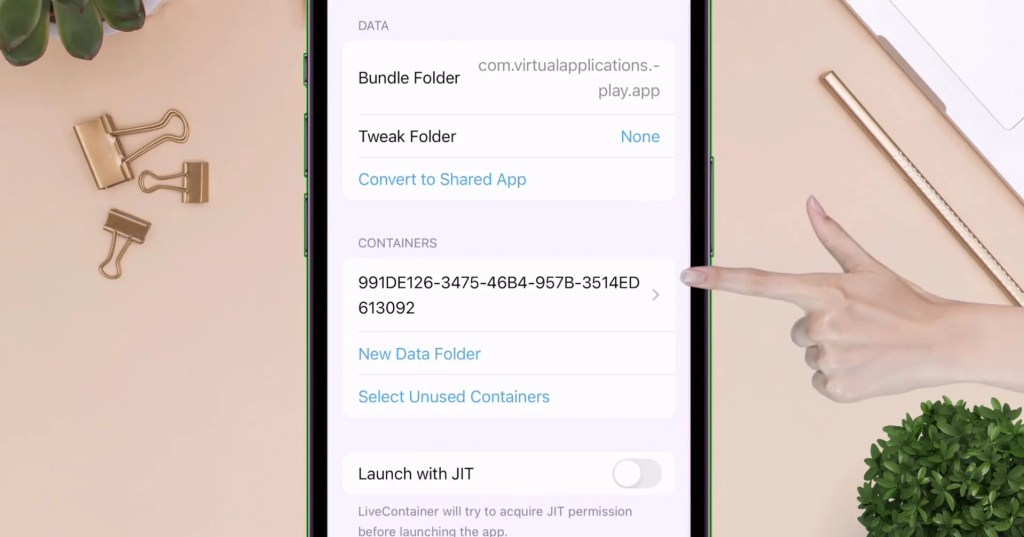 ISO placed in the Documents folder — Play! will detect it automatically on next launch
If you have multiple sideloaded apps via LiveContainer, each has its own unique ID folder. Make sure you're in the Play! folder specifically — placing the ISO in the wrong app's folder means it'll never show up.
When you first open a game, it'll either crash immediately or run at an unplayable frame rate. That's because JIT (Just-In-Time Compilation) isn't enabled yet — and without it, the iPhone processor simply can't keep up with PS2's architecture.
JIT translates PS2 machine code into native iPhone instructions in real time. Without it, every PS2 instruction has to be interpreted one by one — making even simple games run at 5–10% normal speed.
With JIT: smooth gameplay, proper frame rates, no crashes. Without JIT: instant crash or unplayable slide show.
Use your PC via AltServer, or use tools like SideStore or Jitterbug to enable JIT for the Play! app inside LiveContainer. Once JIT is active, relaunch Play! — your game will now run properly.
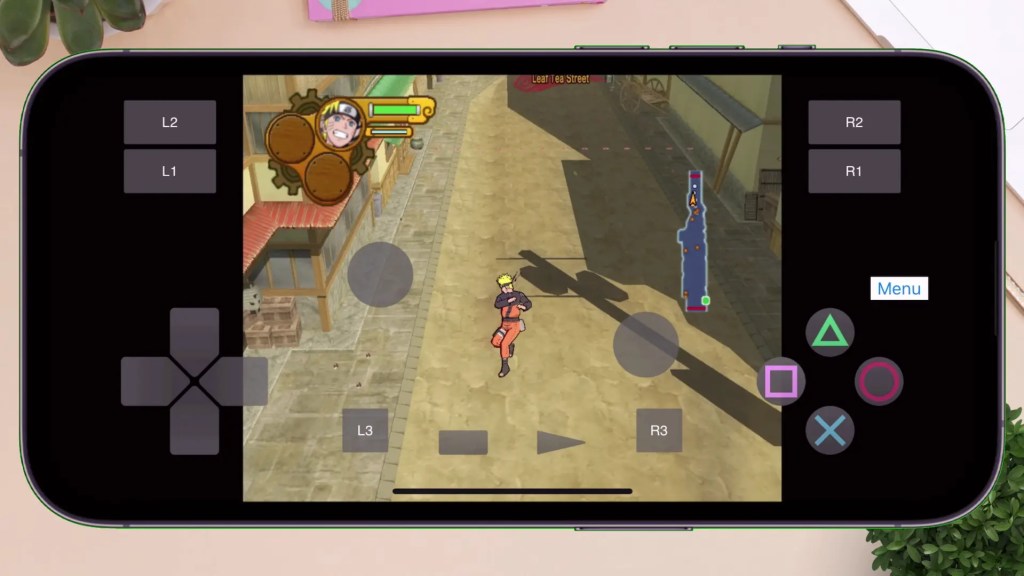
Using LiveContainer and Play! is currently the best way to run PS2 games on iPhone or iPad. Once you get the hang of the setup, the process is surprisingly straightforward — and it requires no jailbreak or sketchy tools.
With JIT enabled and your ISO placed correctly, you can enjoy legendary titles like Naruto: Ultimate Ninja, Shadow of the Colossus, or God of War 2 — all from your pocket.
If you run into issues, double-check these three things:
- Your ISO is fully extracted and not corrupted
- The LiveContainer folder ID matches exactly
- JIT is properly enabled before launching the game
Common Questions


![GameHub v5.3.5 Free Download for Android [Official App 2026]](https://blogger.googleusercontent.com/img/b/R29vZ2xl/AVvXsEj4TbvK44yH-bqDGUwJz9bqx42qBk9nLssZaJDWcWvM8pfwkhPRP8Wq8G-NwY147mDtxvuRbmdOED6HgJ-ybszc-40GnSBT7qYa5LS2IwxuCIugvFNLLwdIElkKAdMylkaWfjqMK3qGLMM3B3eV5O94GxSwUjIOe-U4qTXu2Ig_1zPtvwu9D6rof5v9N7Uf/s960/gamehub_hero_image.webp)
